
When I originally wrote this post back in 2008, I apparently did so in a way that made it incomprehensible without the images which accompanied it. So while this updated post isn’t the exact same problem, it does carry the same spirit of working through broken wall joins caused by broken wall profiles. Hope this helps you out in some way along your journey!
[Original Post: Bòrked Wall Profiles]
I have noticed in a lot of projects I end up cleaning, that people tend to misuse wall profiles. What I end up running across most commonly is a wall that may have needed to be profiled at one point, but is no longer profiled
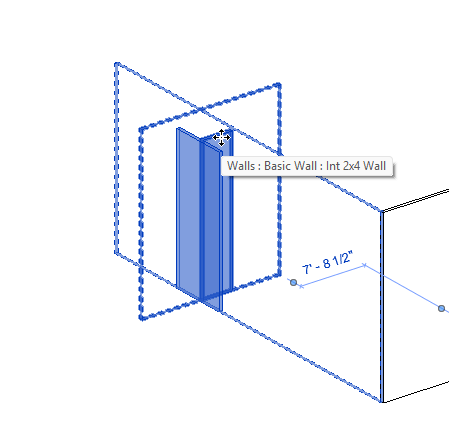
or a wall that has had the profile sketch moved from the reference lines of the wall.
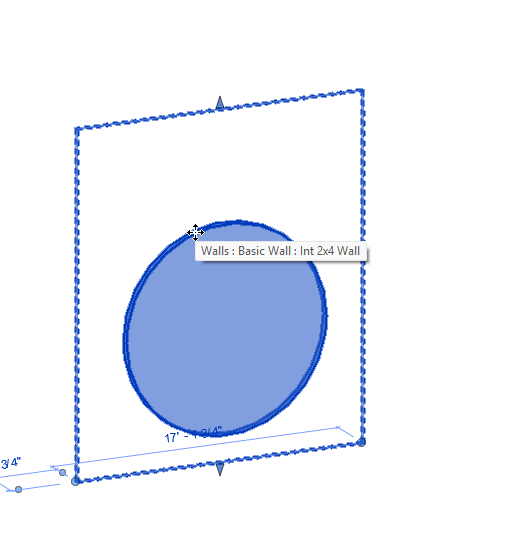
Like everything else in revit, profiles do require a little bit of planning and should not just be the result of rushing into the Edit Profile tool because you need the wall to act differently. Some things to keep in mind when you need to edit the profile of a wall:
- When someone drags the wall ends, should the length change?
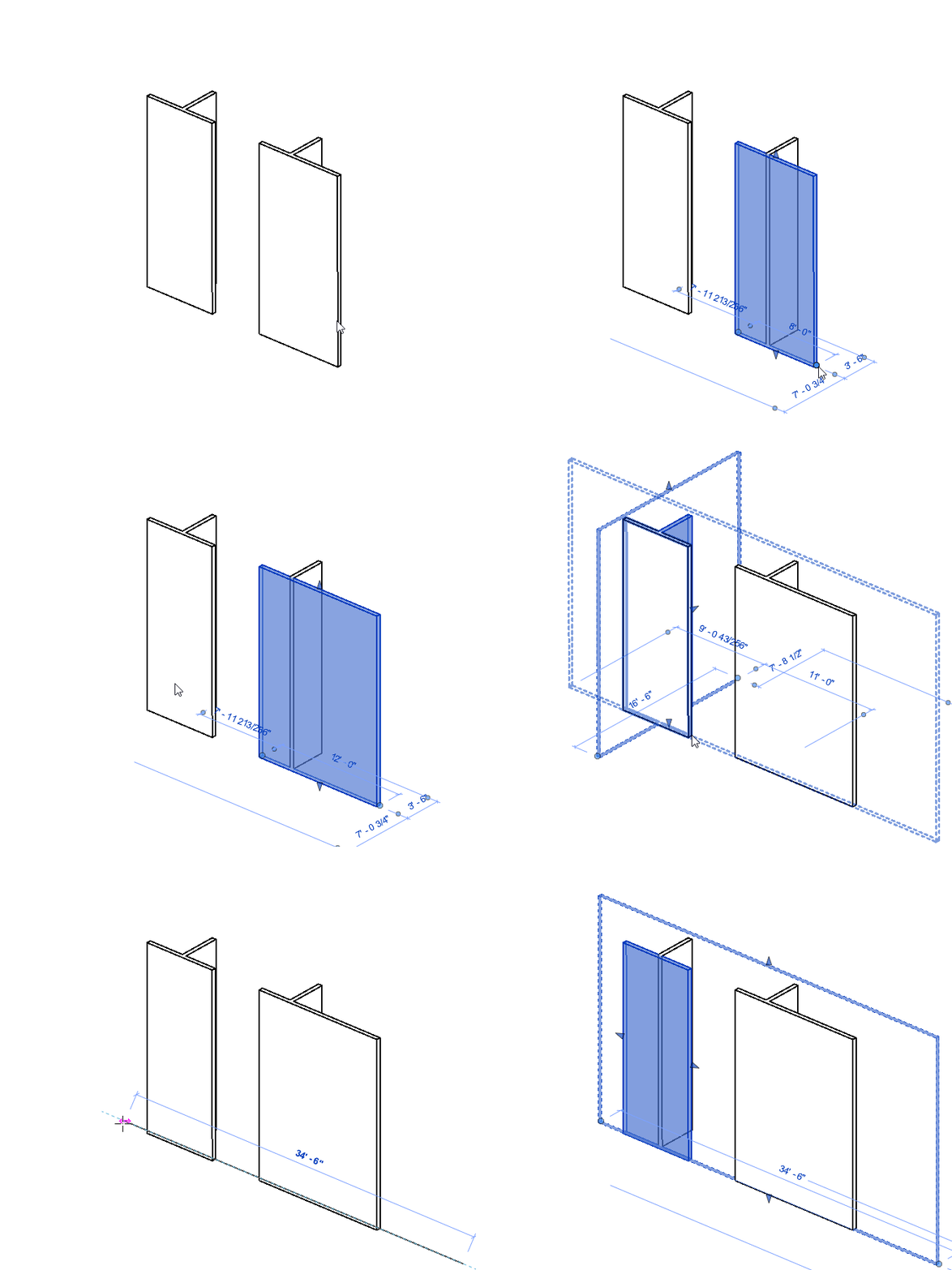
- Is this a fixed shape that is completely unconstrained from the original wall profile?
- Does the wall height need to be controllable from the wall property dialogue?
- Does the wall need to join cleanly with other walls around it?
In the original post, and many times since then, I’ve found walls with edited profiles to cause join issues with other walls. But for the life of me, I could not force this behavior for an image on this post. So you’ll just have to trust me that broken profiles can wreak havoc with your wall joins!
So what does a broken wall profile look like?
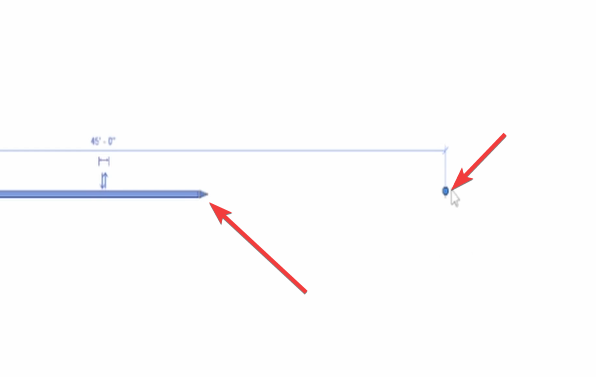
The first thing we note is that when we hover over or select the wall, it shows that the profile edge of the wall and the reference edge of the wall do not match. While this does not necessarily mean that something is wrong, it was my first clue as to what the culprit was.
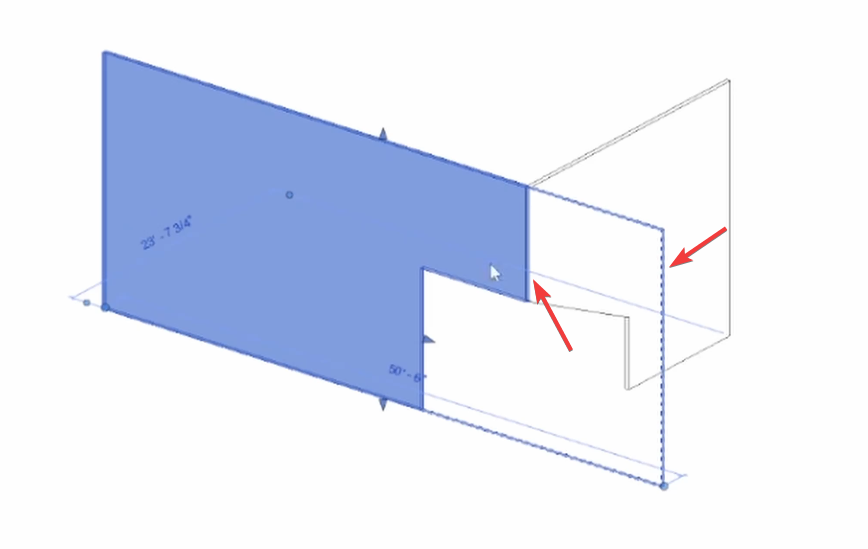
Another good indicator is when dragging the side or top/bottom grips does not affect the shape of the wall.
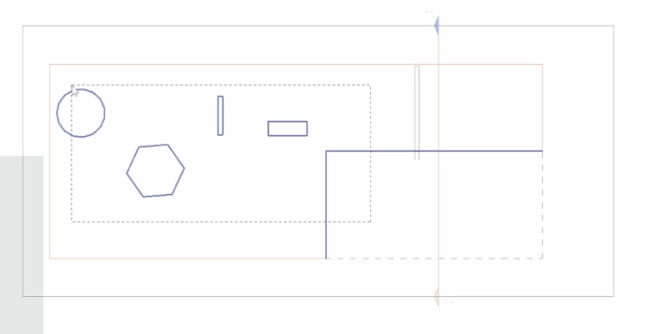
When we edit the profile of this wall we see what the issue is. The sketch lines of the profile are not constrained to the edge constraints of the wall object.
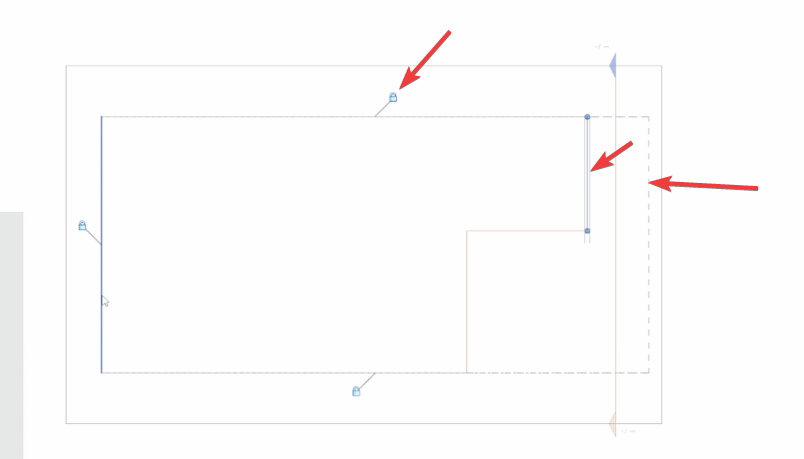
This means that Revit really has no clue what to do with the wall edge now, so it just leaves it alone sometimes without even connecting it to anything.
So now what? Well, we want to preserve our original profile lines, because those are correct, but we want to retain the locks to the reference lines so that Revit can handle wall joins properly. To start off, we need to copy the profile sketch lines. You probably want to do this in an elevation or section view that is parallel with the wall, but if you want to feel fancy you can do it from a 3D View. Select the wall and go into profile sketch mode by selecting “Edit Profile”or double clicking the wall.
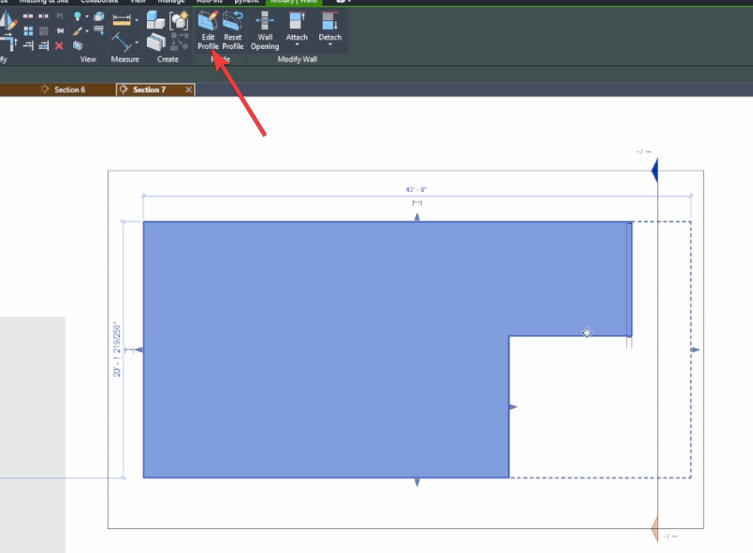
By selecting one of the lines, you can see that they are not locked to the reference plane on the right, which is the plane that indicates the side of the wall forming the join we are looking at.
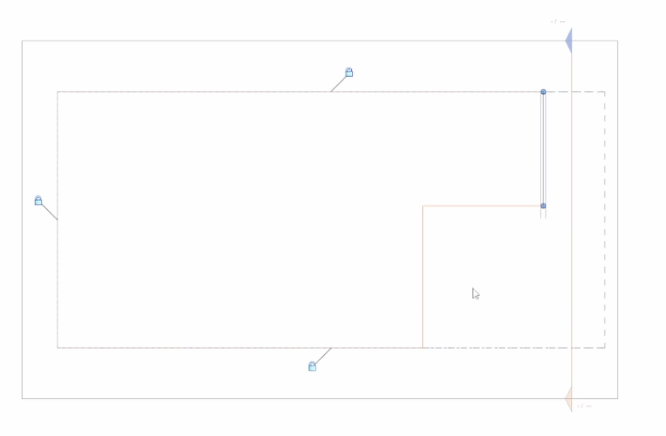
In the following images, you’ll notice our interior designer added some “fun and energetic” shapes to the wall that the owner “demanded”. Go ahead and select all of the sketch lines (favorite tool! Hover over a line and hit tab once to select the entire loop of lines!) and cutthem to clipboard (Ctrl+X).
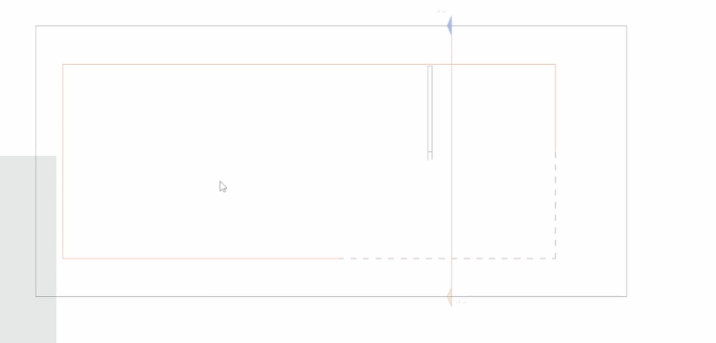
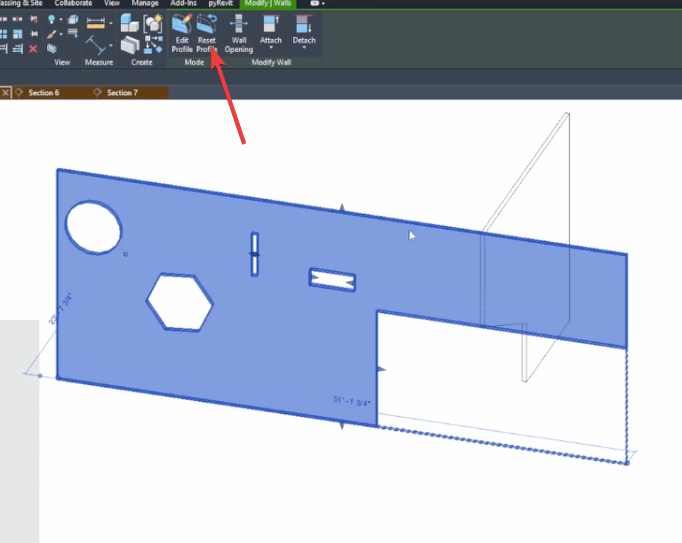
Go ahead and exit the sketch. It’s ok if you discard changes because we’re just going to reset the profile. Select the wall again, and remove the profile sketch by clicking “Reset Profile” in the options bar. Another option is to simply sketch new lines on the wall edge and lock them to the dashed wall edge references.
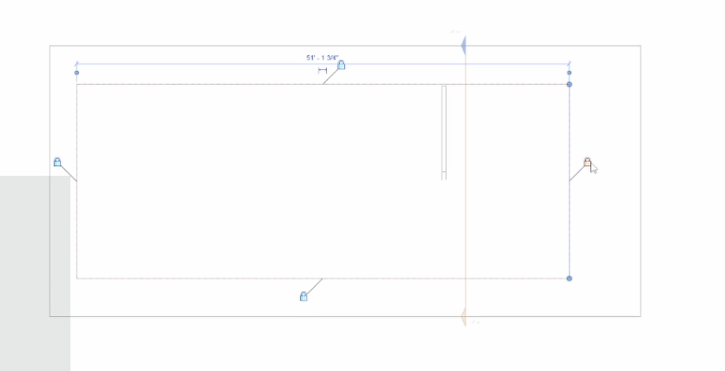
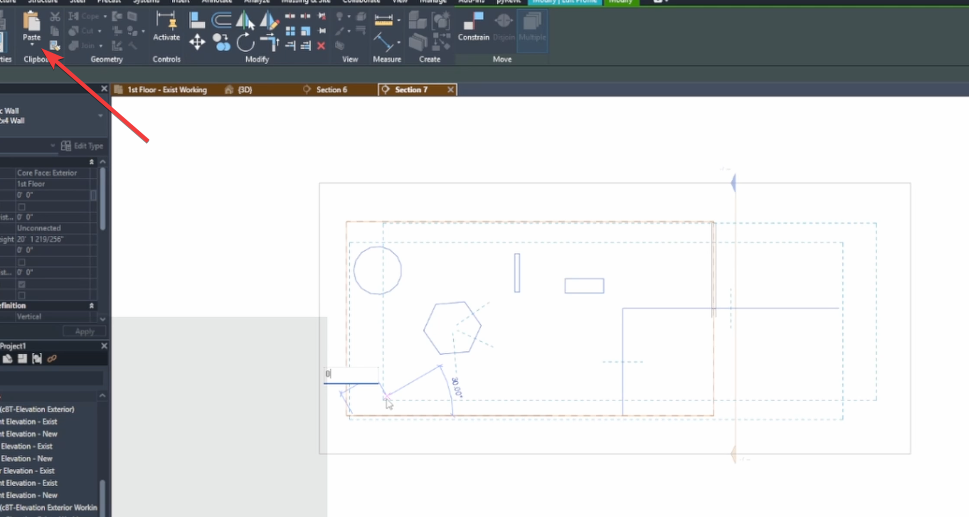
Now we want to add the original profile shape back to the wall. Select the wall one more time, enter sketch mode by clicking “Edit Profile.” Be sure you’re doing this in an Eelvation or Section view that is parallel to the wall if you want these profile sketch lines to end up exactly where they were before. Use the Paste tool (Ctrl+V). You can type 0 and hit Enter to place them exactly where they were or place the sketch profile lines wherever you like
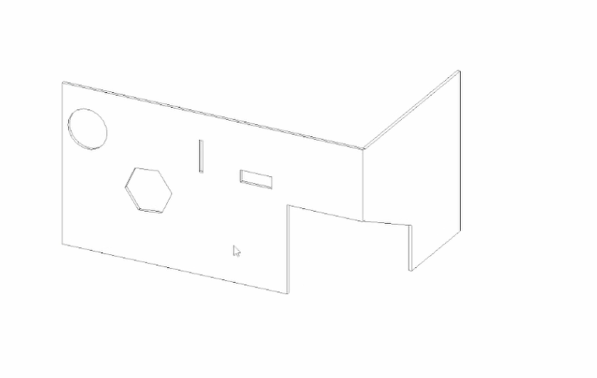
Congrats! That wasn’t so tough was it?
Hope this helps you reviteer. Enjoy the weather!